
M-PESA integration
M-PESA fee payments, matched to the right student.
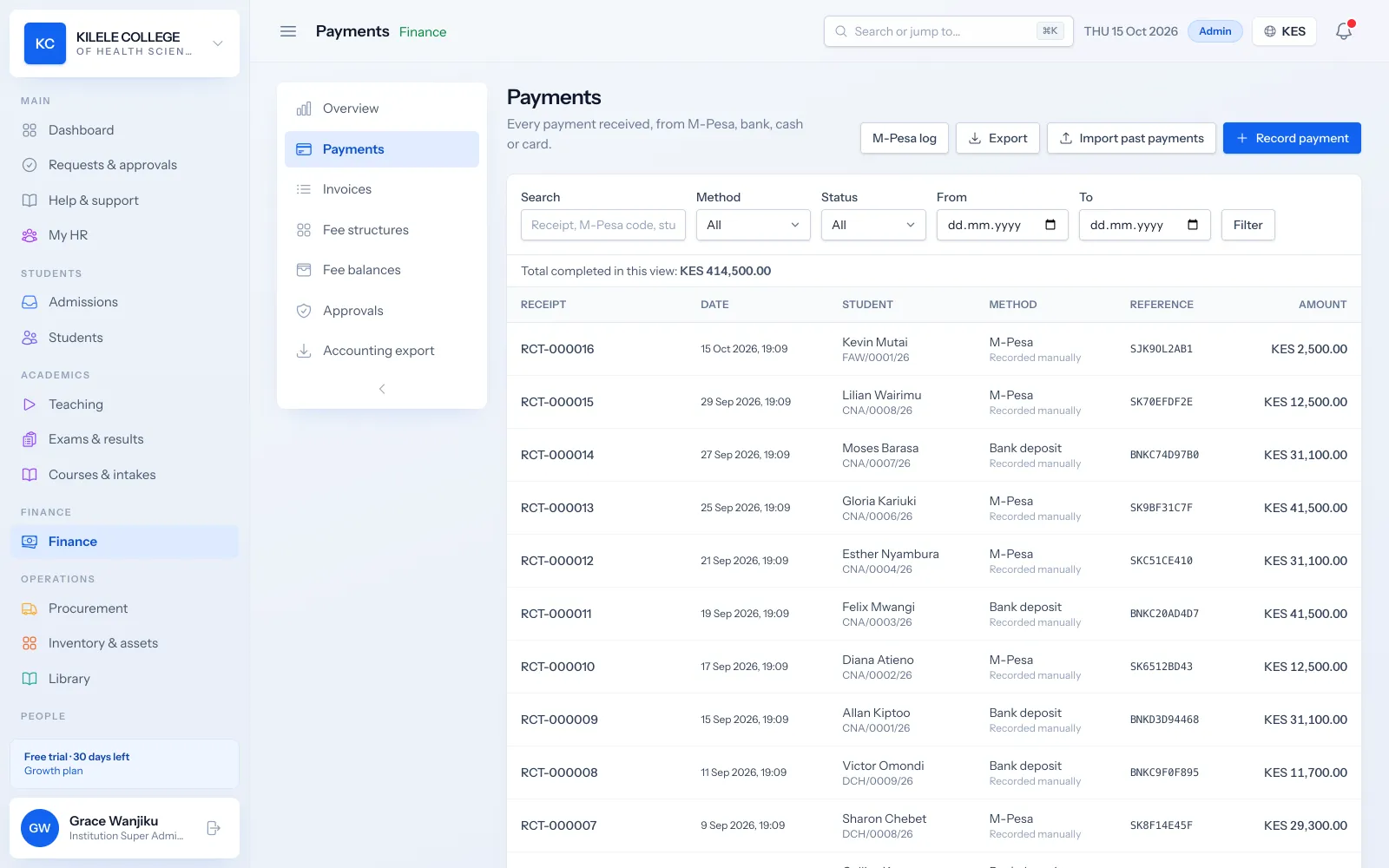
Students and parents already pay by M-PESA. Soma360 connects to your institution's own paybill or till through Safaricom Daraja, records each payment against the right student, and shows your finance team anything that needs a person to check.
Your account, your money
Payments go straight to your paybill or till. Soma360 never holds or moves your funds.
Matched by admission number
When the payer uses the admission number as the account number, the payment is recorded and receipted automatically.
Nothing silently lost
Payments that cannot be matched wait in a queue for finance to allocate.
M-PESA integration
Account ownership
You connect your own Safaricom Daraja app to Soma360 with your own shortcode. Your credentials are stored encrypted and used only for your institution.
- Your paybill or till number and Daraja app credentials
- Credentials stored encrypted
- A private callback address for your institution
- Callbacks can be restricted to Safaricom's IP addresses
M-PESA integration
How payments are matched
When someone pays to your paybill, Safaricom sends the payment details to Soma360. The account number the payer entered is compared with your students' admission and student numbers.
- Matched by admission number or student number (letter case ignored)
- A matched payment is recorded, receipted and applied to the balance automatically
- Each M-PESA receipt is recorded once, even if Safaricom sends the same notification again
- The payer's phone number and M-PESA receipt number are kept with the payment
M-PESA integration
Unmatched transactions
If the account number does not match a student, for example a typo or a parent's ID number, the payment is not guessed. It goes into the unmatched queue.
- Unmatched payments listed with amount, payer phone and account number entered
- A finance officer allocates each one to the right student
- Allocation issues the receipt and updates the balance
- Every allocation is recorded in the audit log
M-PESA integration
Payment prompts (STK push)
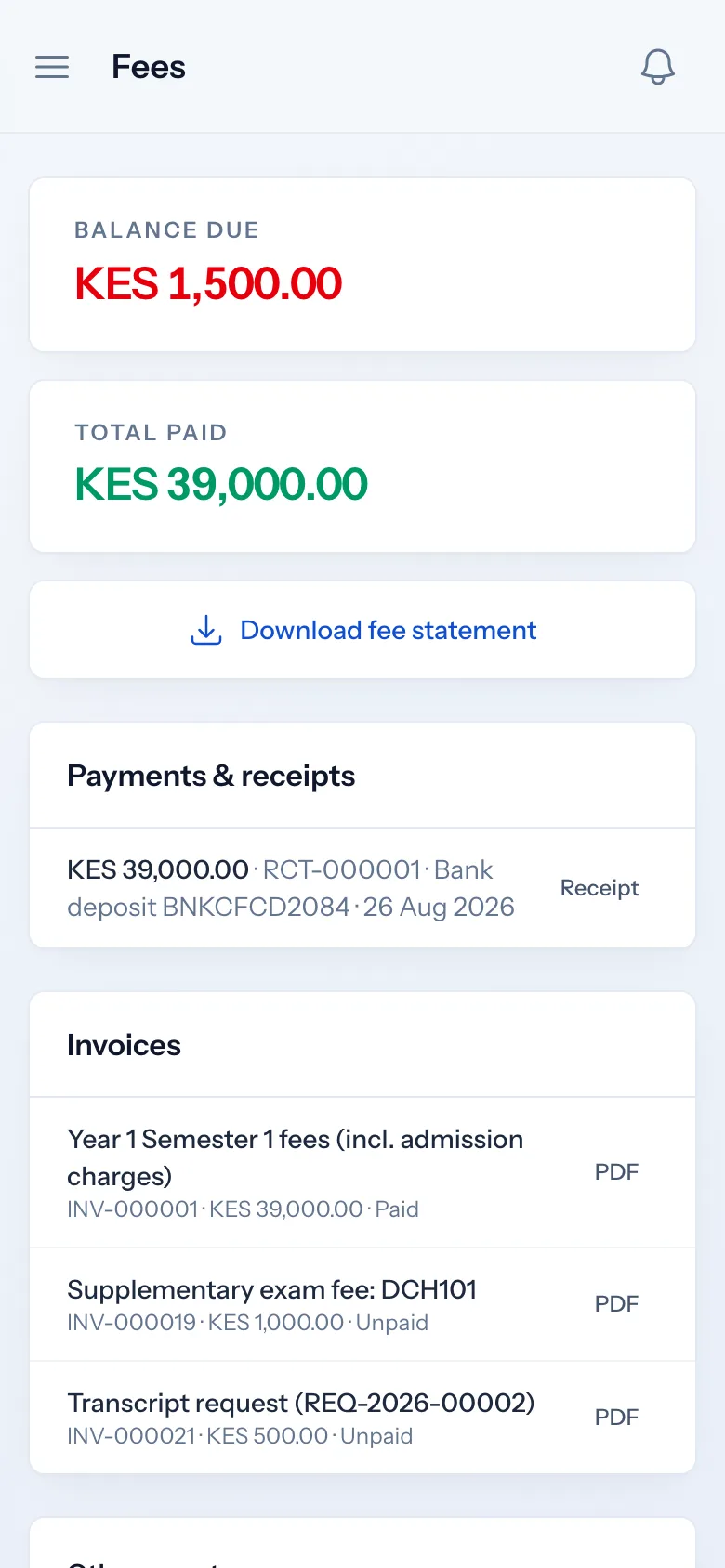
Finance staff can send an M-PESA payment prompt to a payer's phone from the student's profile, and students can request one from the portal. The payer enters their PIN and the payment is recorded against that student.
- Prompt sent with the student's admission number as the account reference
- Payment recorded when Safaricom confirms it
- A "check status" action for prompts still pending
M-PESA integration
Reversals and corrections
If a payment was recorded against the wrong student or must be undone, a finance officer reverses it in Soma360 with a reason. Refunding money to the payer is done through your M-PESA account with Safaricom, not by Soma360.
- Reversed payments stay on record, marked as reversed
- The student's balance is recalculated
- Reason and user recorded in the audit log
How it works
M-PESA integration, step by step
-
1
Connect
Enter your Daraja credentials and shortcode in Finance settings and register your callback addresses.
-
2
Tell students
Ask payers to use the admission number as the account number.
-
3
Payments arrive
Matched payments are recorded and receipted automatically.
-
4
Allocate the rest
Finance allocates any unmatched payments from the queue.
Who uses it
Built for everyone involved
Finance officers
Allocate unmatched payments, send payment prompts and reverse mistakes.
Students and parents
Pay by paybill, till or a prompt from the portal.
Principals
See collections as they happen.
FAQ
Questions about M-PESA integration
Whose M-PESA account receives the money?
Yours. You connect your institution's own paybill or till, so payments settle directly into your account under your agreement with Safaricom.
What happens if a parent enters the wrong account number?
The payment appears in the unmatched queue with the amount, phone number and account number entered, and a finance officer allocates it to the right student.
Can a payment be reversed?
Yes, in Soma360: a finance officer reverses it with a reason and the balance is recalculated. Returning money to the payer is handled through your M-PESA account with Safaricom.
Do we need a Safaricom Daraja account?
Yes. You need a paybill or till and a Daraja app with production access from Safaricom. We can guide you through connecting it.
Works together with
Related features
Fees & payments
Fee structures, invoices, payments, receipts, balances and collection reports.
Learn moreStudent portal
Profile, fee statements, results, announcements, downloads and requests.
Learn moreReporting
Enrolment, collections, balances, attendance and academic reports with export.
Learn moreSee how Soma360 fits your institution
Tell us how your institution works and we will focus the demo on your records, departments and workflows. Prefer to explore alone? Start a 30-day free trial.